TLDR: I hesitate to recommend this to anyone as it’s finicky to set up and may go away, but just in case: Google Sheets has an “Extensions -> AppSheet -> Create an app” that gives an easier interface for editing a sheet from phone (stuff like updating a daily habit tracker or whatever).
Last year, I made a “2025 daily tracker” in Google Sheets, where I updated some data every day (like a daily habit tracker). It is not very convenient to edit Google Sheets using a phone, but it turns out Google Sheets comes with something called “AppSheet” that can make this slightly easier. This being a feature that is apparently not very well known (and therefore not much used), I expect it to go away at some point, but for now, the following is how it works.
(I’m writing this for myself because I accidentally deleted my 2025 “app”, so I’m having to retrace steps for 2026. There may be even simpler ways of doing this but this is what I did. Also, there may be some additional “one-time” setup involved that I didn’t run into now because I’ve already done it once before.)
Create the sheet
-
Create a new sheet (you can visit http://sheets.new to create a new one). I’ll call mine “2026 Daily Tracker”.
-
Add the columns you want. For this example, I want to track two things for each date: a duration (for the sake of example, I’ll call it “exercise duration”) and a yes/no value (for this example, I’ll just call it “Good?”). Although I care only about the duration and not the start/end time, it turns out that the app makes it easy to enter the “current” time, so I’ll go ahead and track those as well.
- Add the rows: type 2026-01-01 (or whatever date format) into cell A2, and drag down the bottom-right corner of the cell to extend it to more rows.
- So now my sheet looks like this:
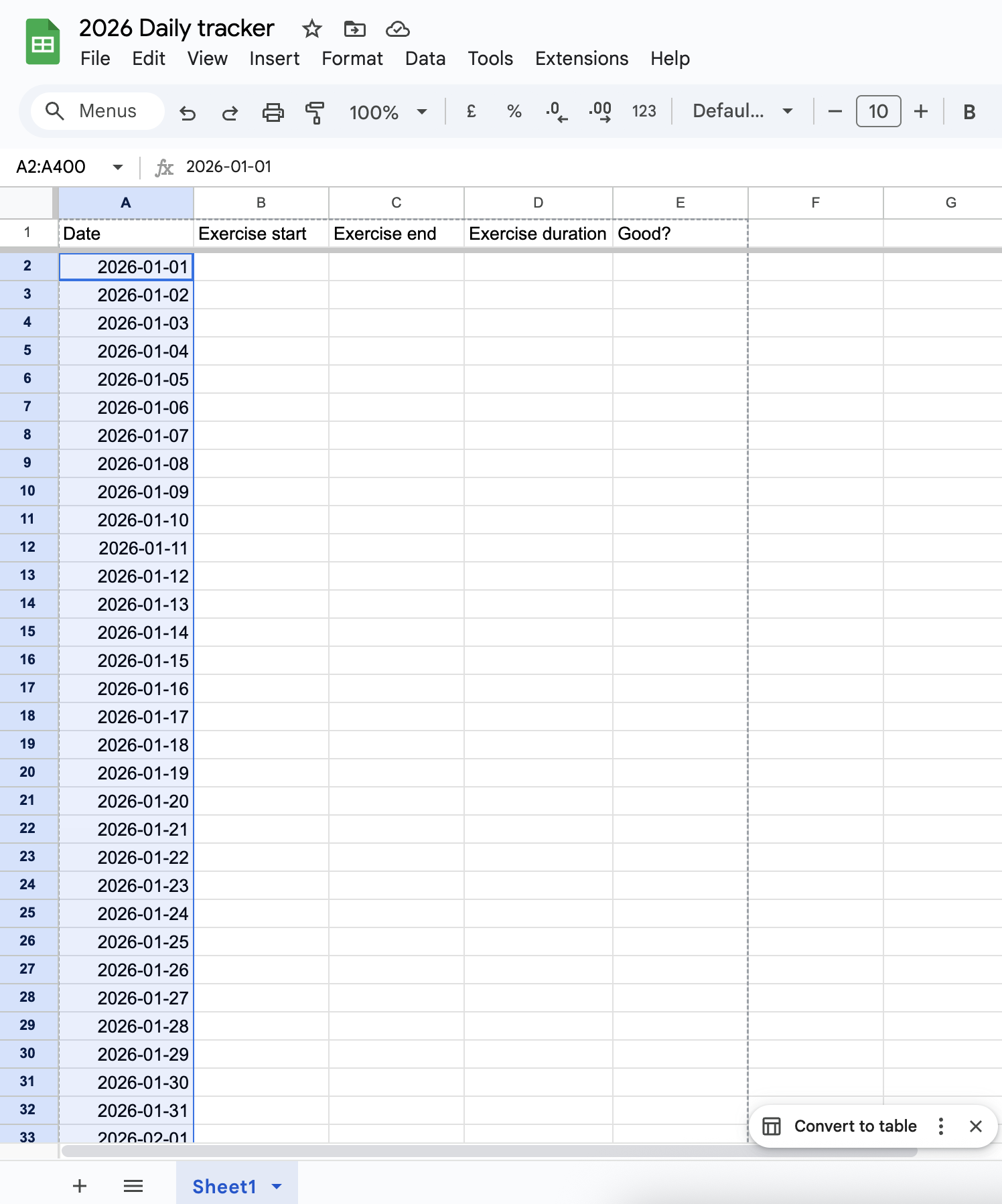
- Sheets offers to “convert to table”; go ahead and do that. Now “Edit column type” to pick “Time”,
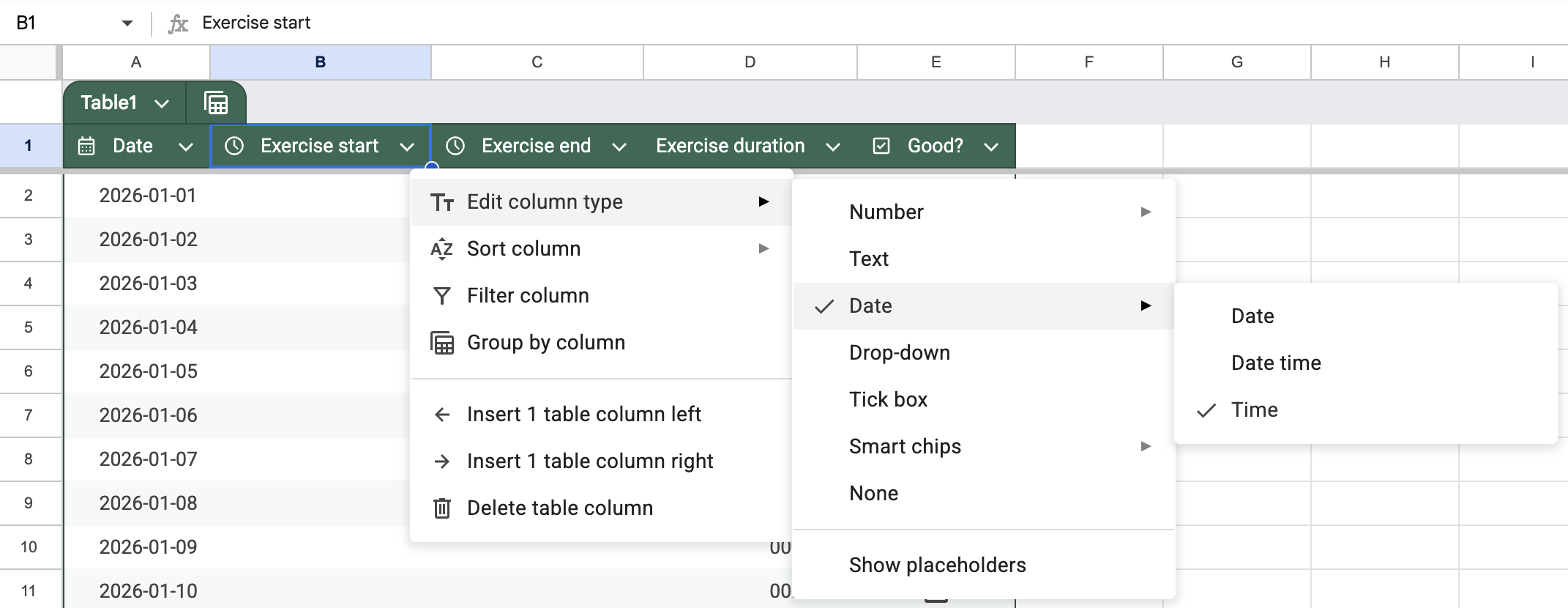 and for D2 (the “exercise duration”) enter the formula
 =C2 - B2 (difference between exercise start and exercise end), and let it auto-fill to the rest of the rows, and for column E, set type to “Tick box”: 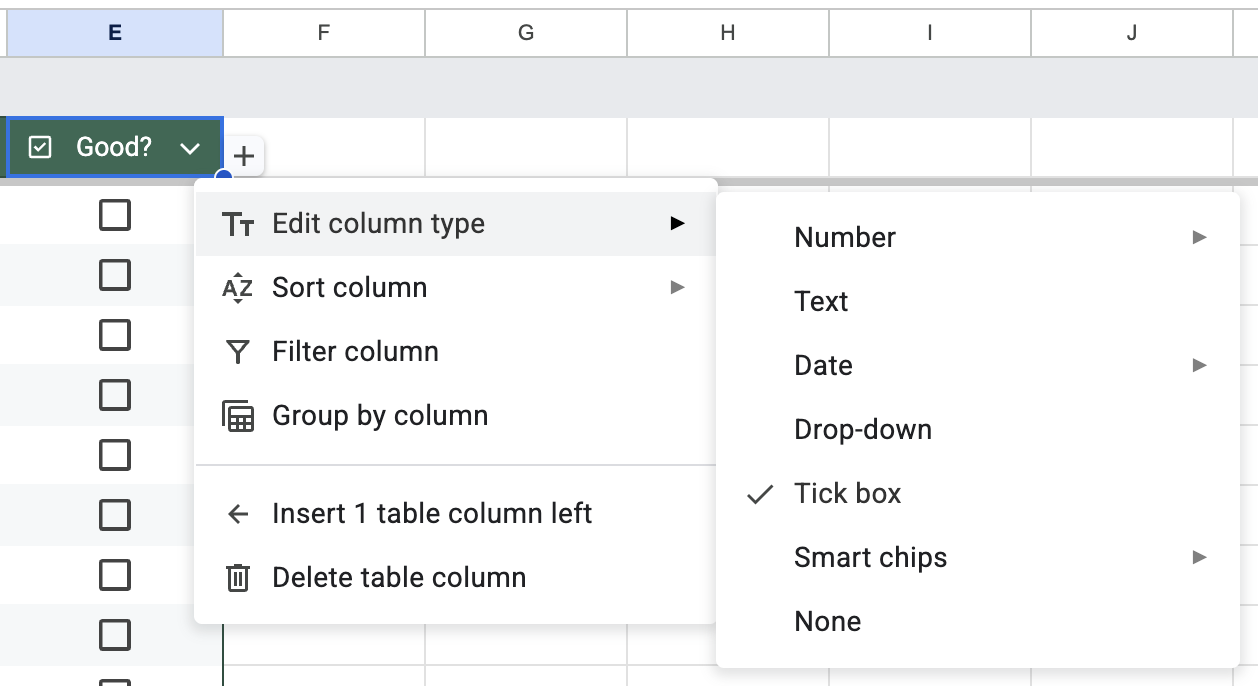
At this point there is a sheet that you could edit manually if you like.
Create the app
Now for the app:
- Click on Extensions > AppSheet > Create an app
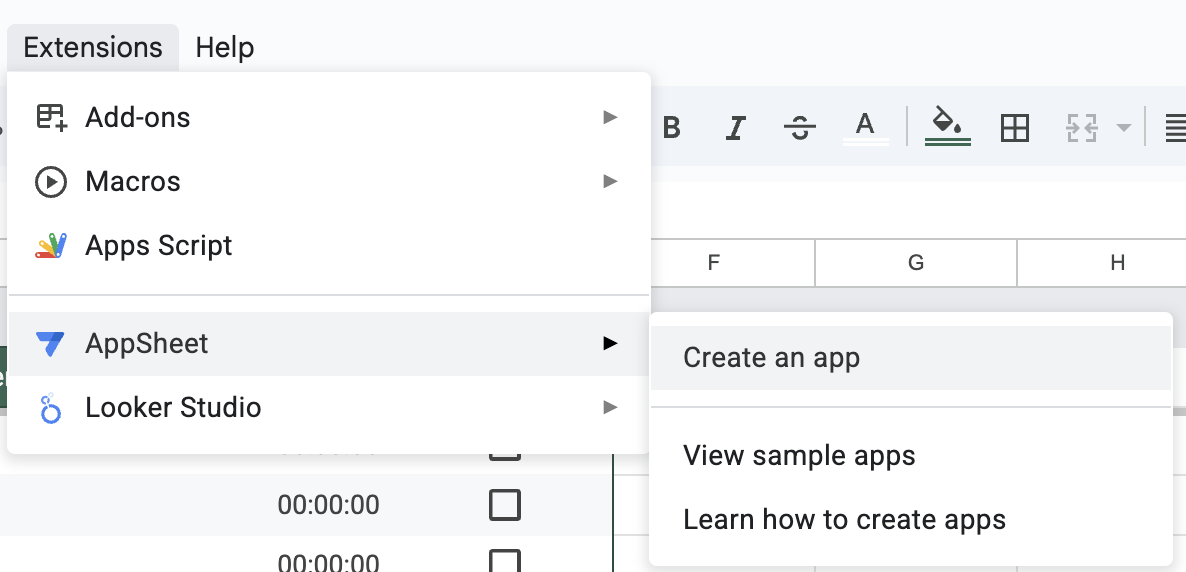
It will bring up a new browser window that loads appsheet.com and has a popup like this:
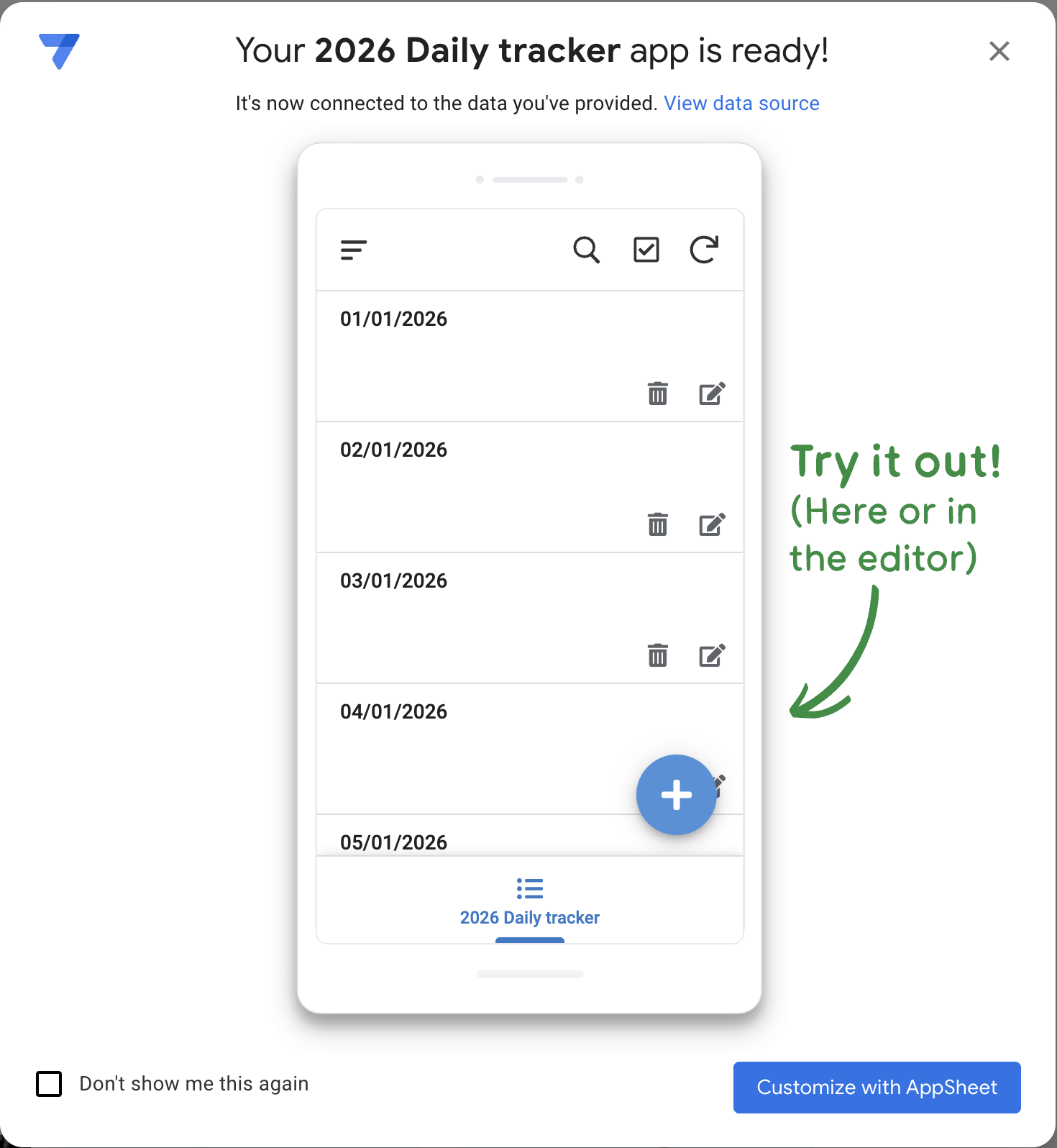
And that’s pretty much it!
Using the app
You should now be able to install (on your phone) the app called “AppSheet”, and within it go to “App Gallery” > “Owned by me” > “2026 Daily tracker”, and you’ll be presented with a UI like this (the date format may be different; it shows up in m/d/yyyy format on my phone but dd/mm/yyyy in the screenshot below):
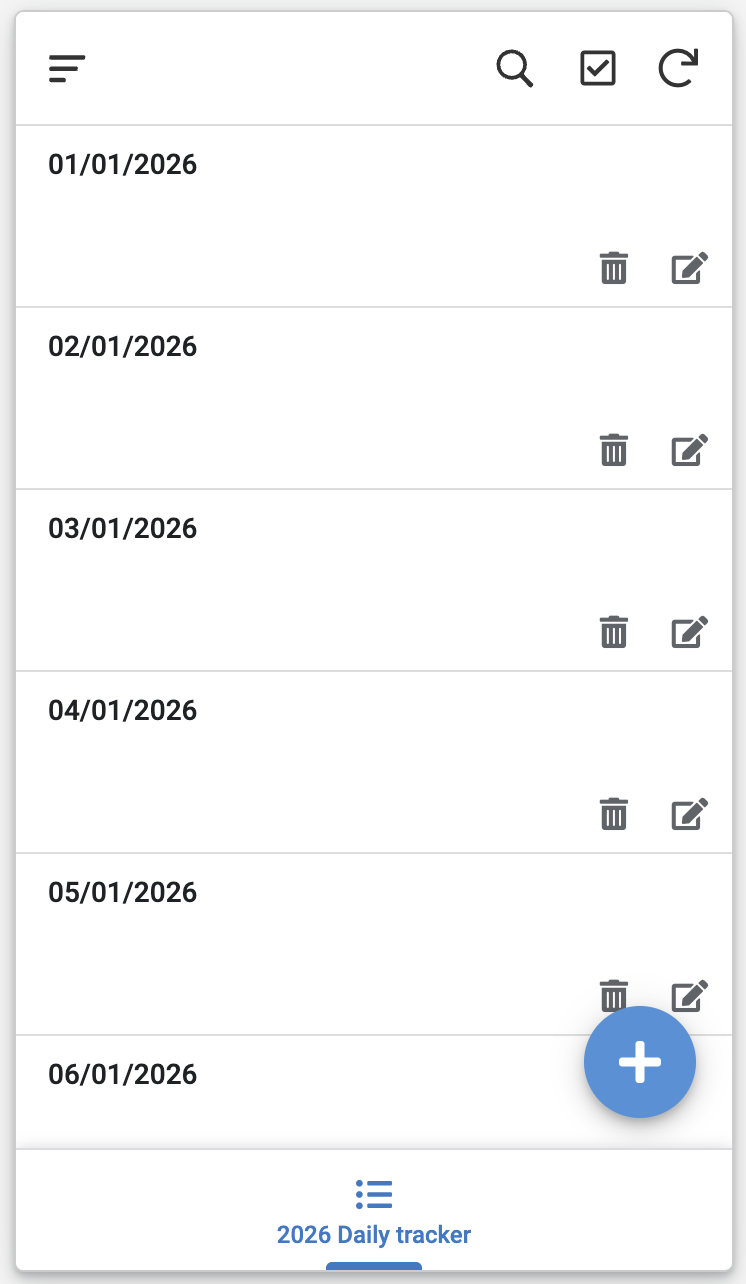
Each of the items here corresponds to a different “row” of the sheet. Click on one of them:
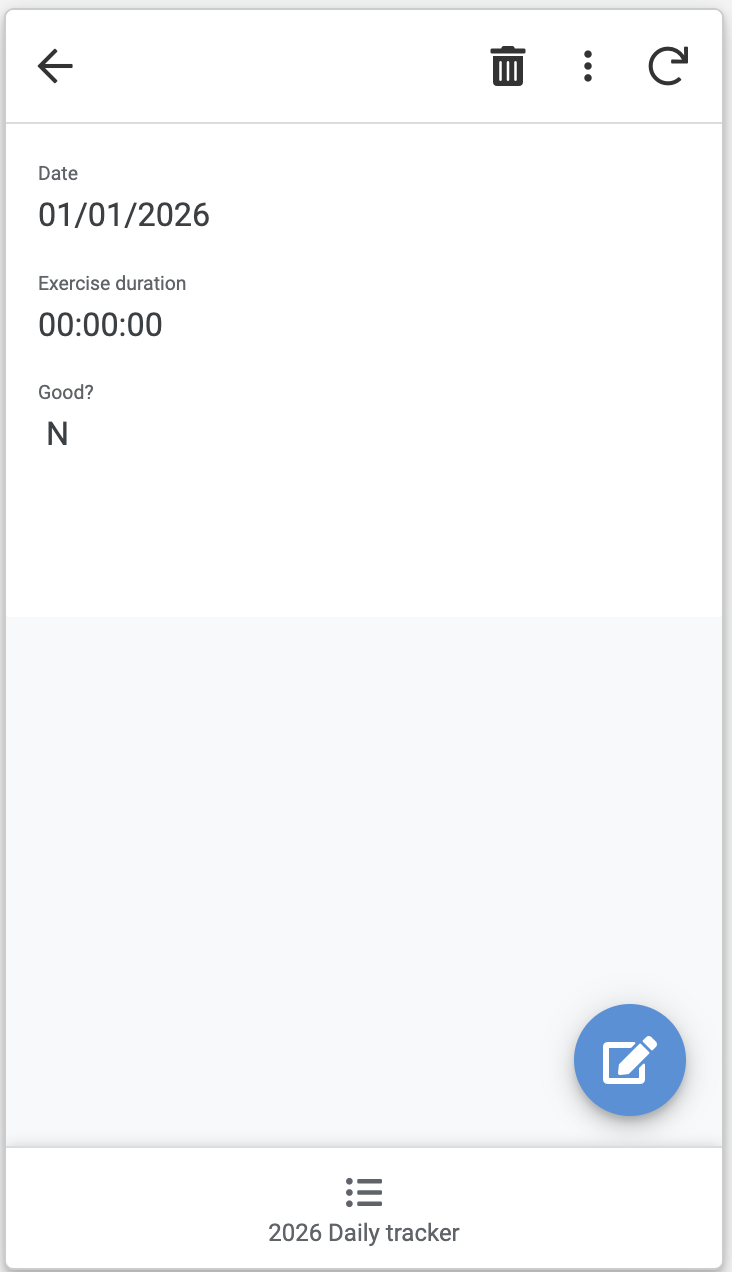
and then the “Edit” button at the bottom right:
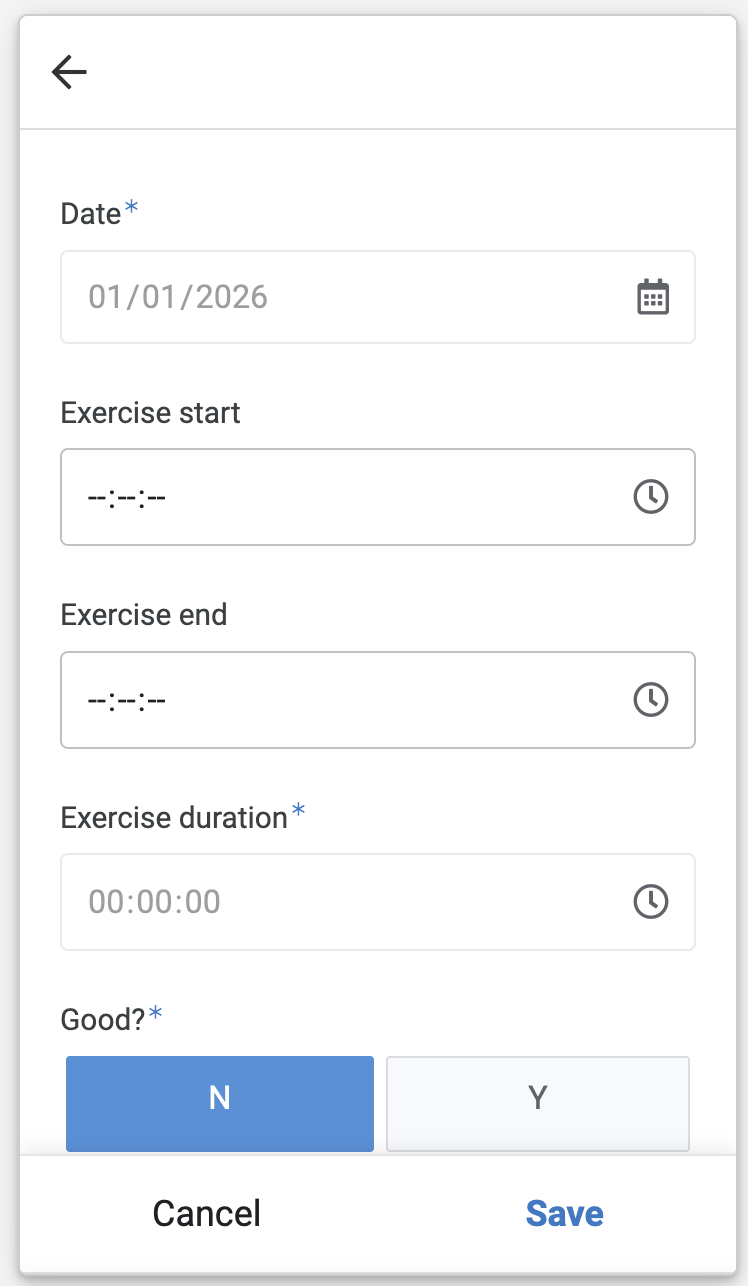
This is the editing UI, where clicking into “Exercise start” defaults to the current time (when you click it), similarly clicking on “Exercise end” defaults to the time when you click that, and clicking “Save” updates the Google Sheet (which automatically computes the duration, which shows up here).
I’m just using this as an easier tool for data entry for personal use. AppSheet isn’t really intended for this use case it appears, because there’s a bunch of stuff on the website about “deploying” the app, but I don’t care about any of that.
Refinements
Some further refinements:
General advice: If not able to edit something, just delete the app and create it anew. (xkcd 1597)
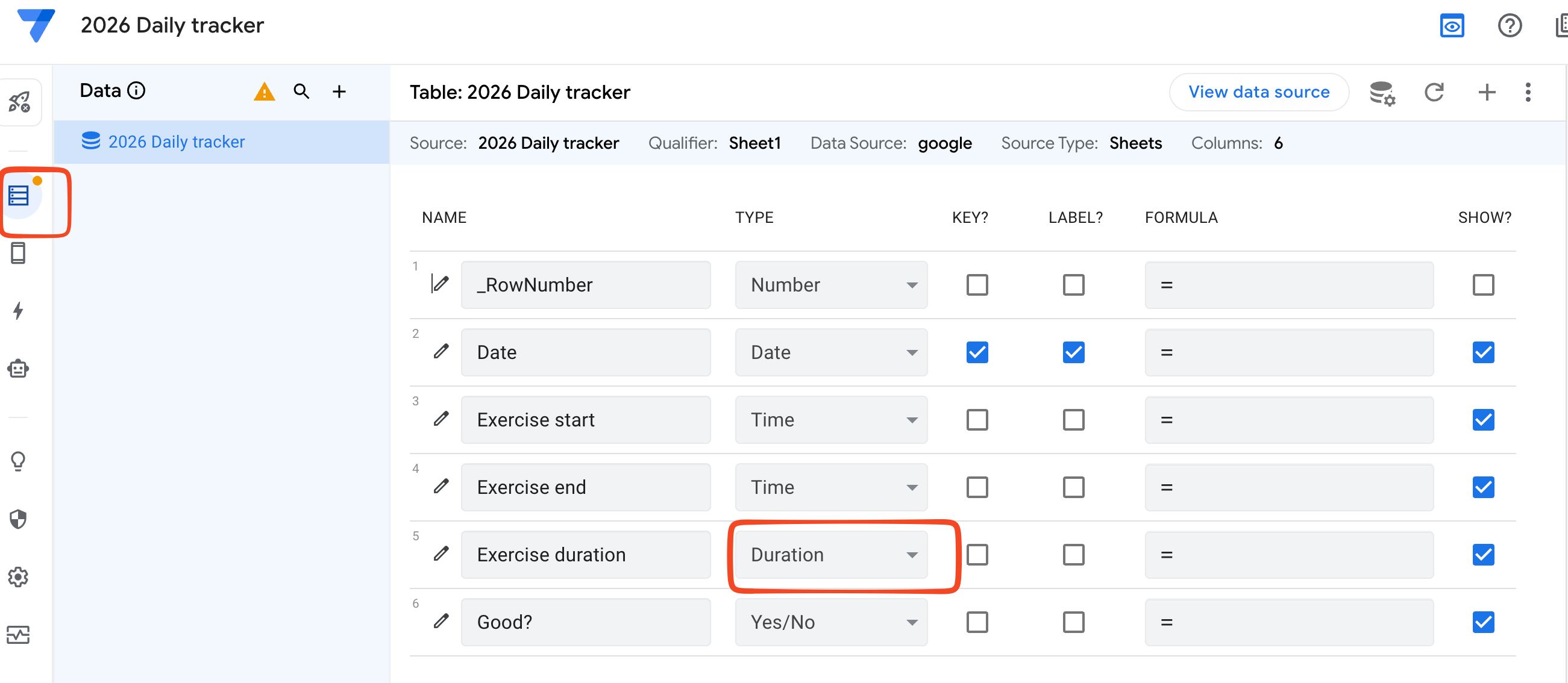
Choosing “Data” in the AppSheet configuration and changing the column’s type to “Duration” is recommended, so that the app doesn’t show a duration like 00:32:00 (32 minutes) as “12:32:00 AM”:
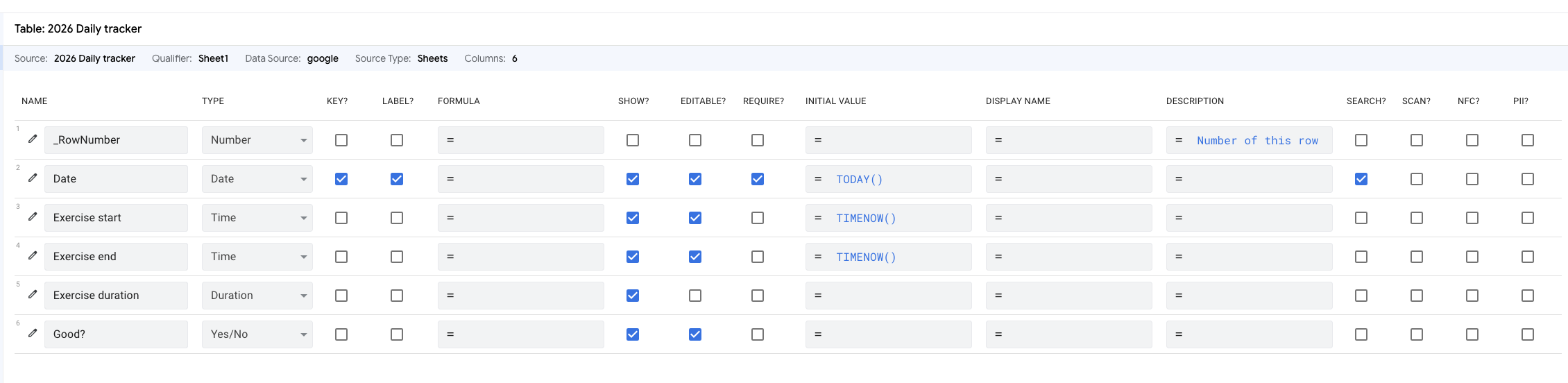
Also, on the same screen, you probably want to uncheck “require” on most of the columns (zoom out or scroll right to see it):
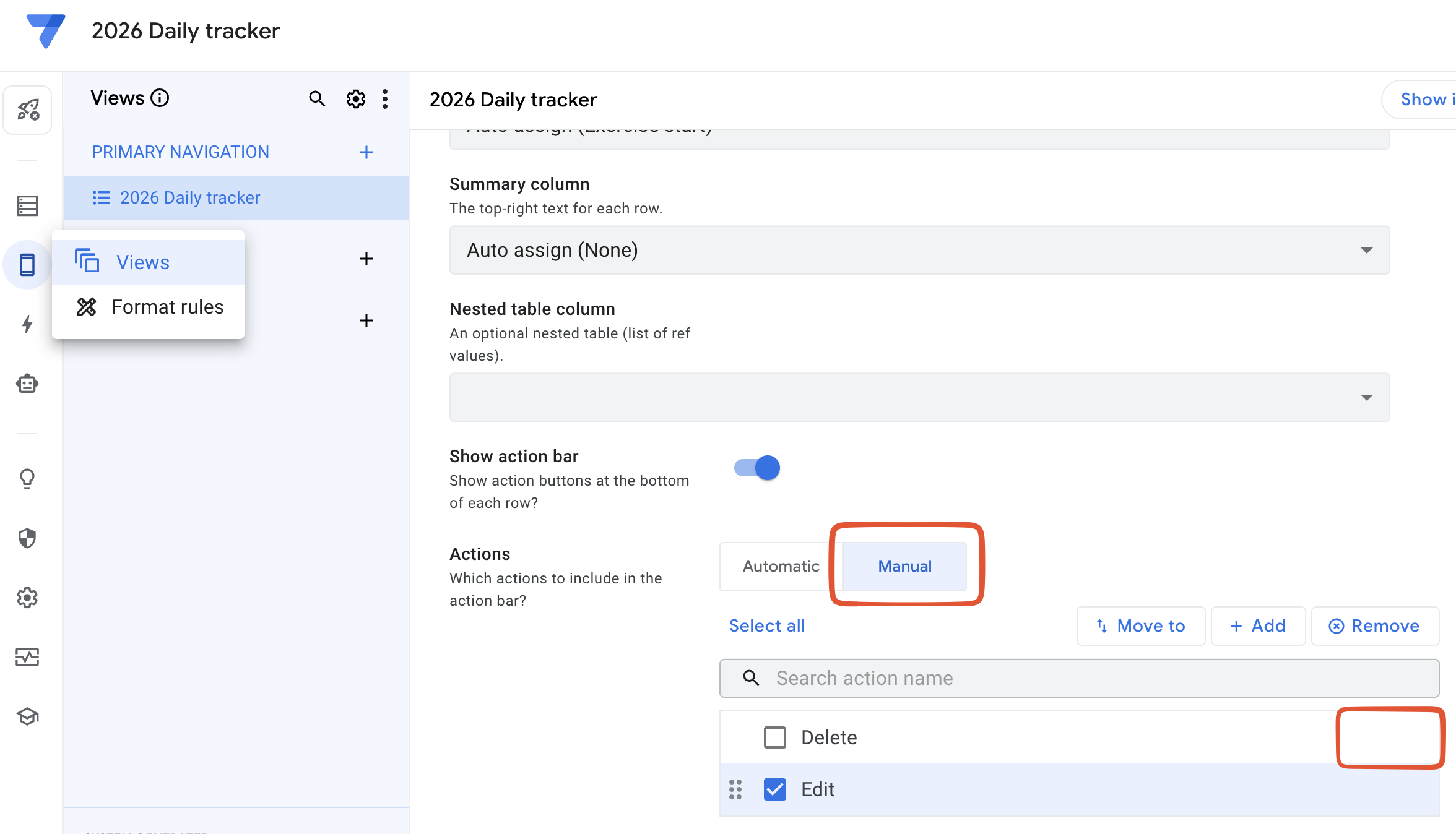
It’s also possible to remove the “delete” action so that it does not show up:
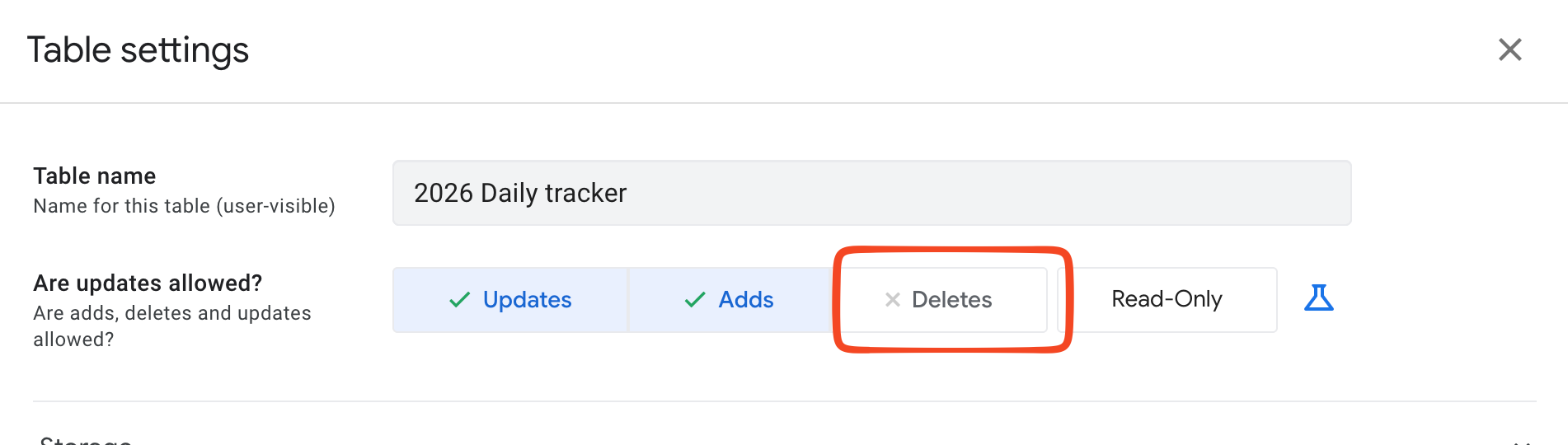
Also do this (and in fact the previous step may not be necessary): Go to Table settings:
 and turn off “Deletes”:
The formatting of dates defaults to whatever is the locale on browser and on your phone, so to get consistent dates, here’s a trick:
- create a column called
DateStr, with formula =TEXT(A3, "YYYY-MM-DD"),
- in the AppSheet’s “Data” settings, hide the original “Date” column.
A second column of =TEXT(WEEKDAY(A2), "ddd") works nicely.